Fixing schematics problems/errors and placing the components on the PCB!
- Session
- 19 of 33
- Date
- 14 May 2026
- Time worked
- 5 h 12 min
- Reading time
- 6 min
- Images
- 23
And after getting feedback again I actually had some issues which would cause that the drone wouldn't start or some parts wouldn't run etc (T-T)
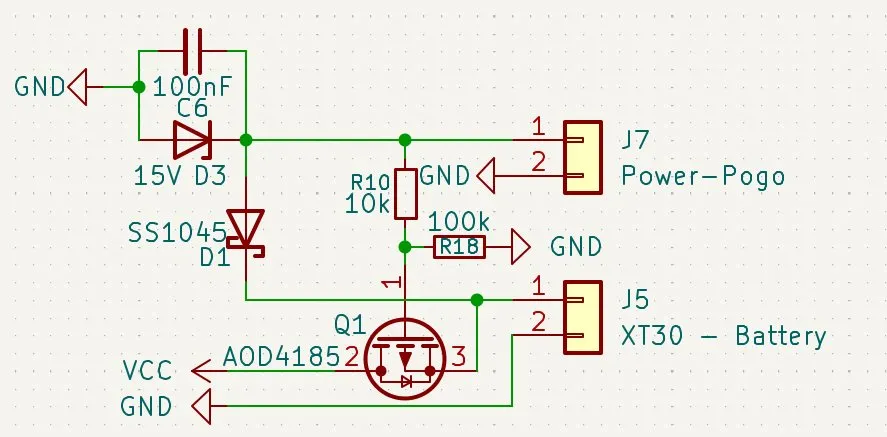
- MOSFET Q1 AOD4185:
- R10 has to be connected to the gate Q1 (pin 1)
- I would need another 100k Pull Down resistor that is directly from the gate to GND so that the MOSFET during flight is still turned on, whether the pogo pins are accidentally touched etc.
So I fixed that adding the resistor R10 between J7 pin 1 and Gate from Q1 and then I also added the R18 a 100k pull down resistor to the Q1 pin 1:
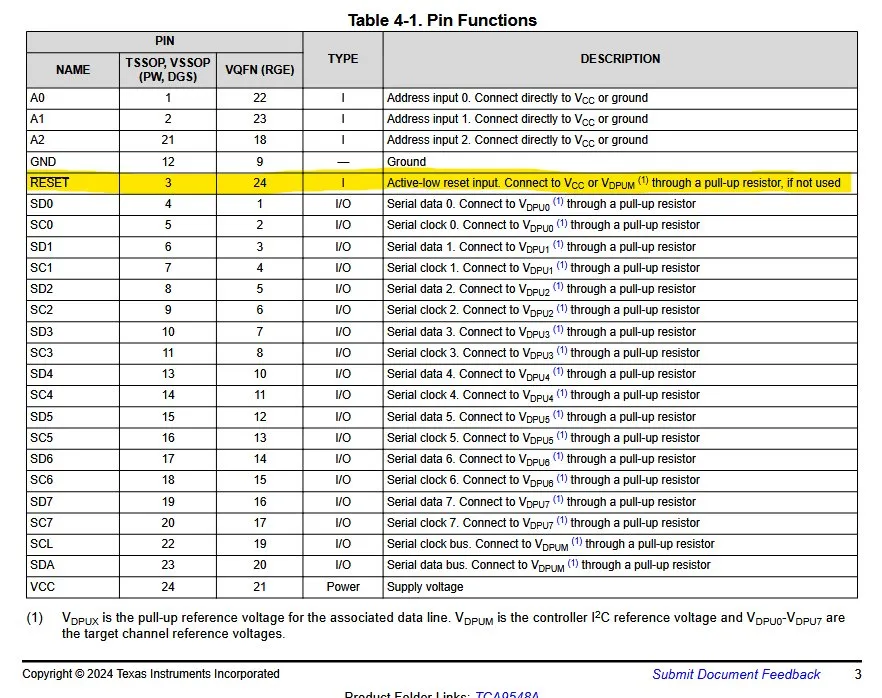
- I also had the problem that I connected the reset with the GPIO, but the pull up resistor shouldn't be connected to GND, it should be connected to 3.3V.
and after checking it in the datasheet he was right:
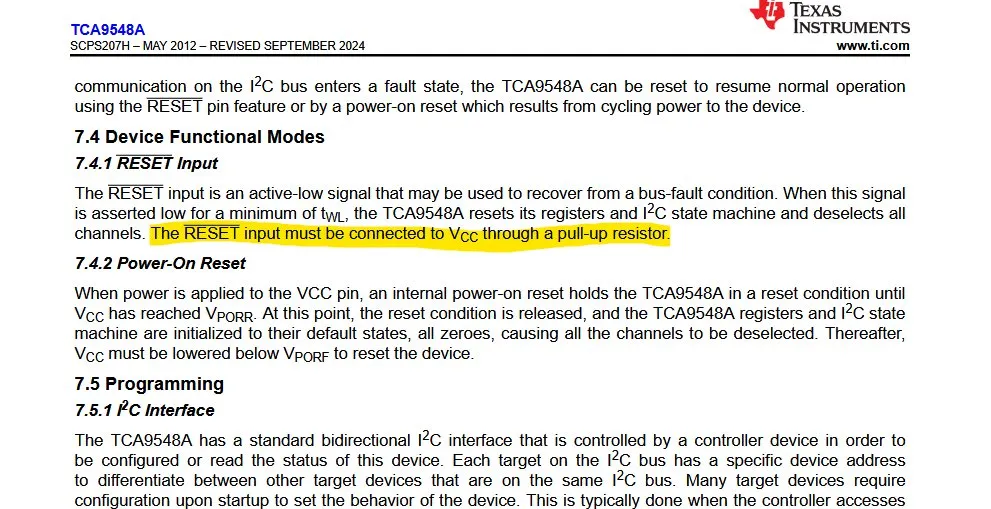
and after fixing that issue it looked like that:
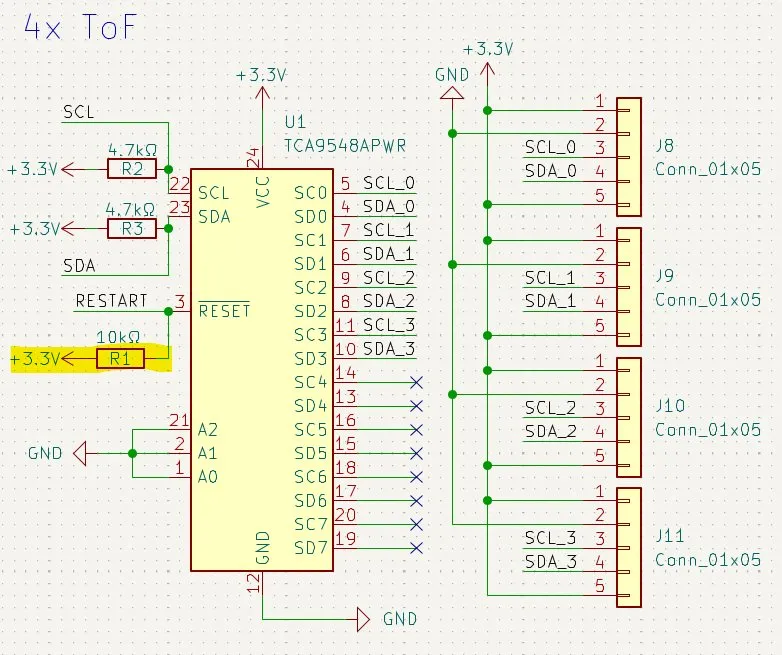
I accidentally put the reset pin at pin 17 at the Raspberry Pi Zero 2 W which is the 3.3V pin but not a GPIO pin, which is what I needed to restart the bus over the code. So I decided to move the reset pin to pin 15 (GPIO 22).
I accidentally added a resistor at the battery percentage although it should be a capacitor:
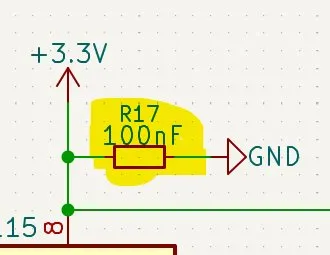
So after changing the resistor to a capacitor and making it 100nF it looked like that:
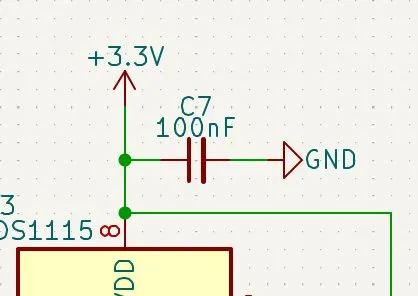
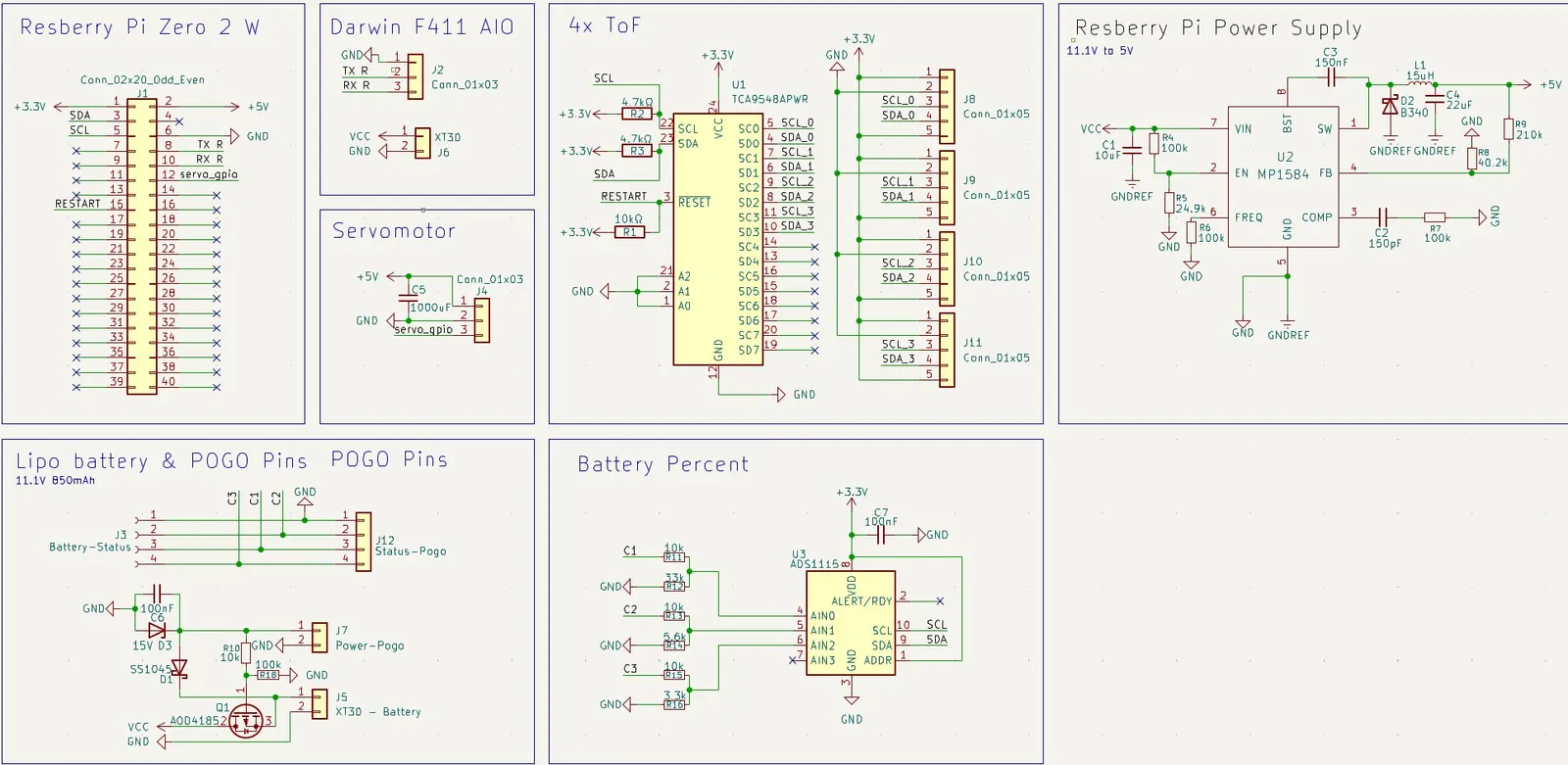
and the updated schematics looked pretty good now and I was confident to route it now (thou a bit scared.....)
Sooo after a couple of deep breaths I continued on the routing, but I didn't even know how it works to open the routing thingy and how to route etc, so I stopped the timelapse to watch some videos to understand the process of it and then I would start the routing.
So after I found out that I opened the PCB editor then I pressed F8 to add all the components, so that I had to go back to the schematics editor and add a footprint to all parts that hadn't a footprint.
I did this, and after I opened the footprint assignments editor I saw that I had to add a footprint to 40 parts (T-T) that will take a LOOOONG time.
So I started with all the capacitors but that was tough to find the correct ones.
(I forgot to stop the lapse for 4 min I think sorry please DONT count it or so it's not fraud!! pls)
I used for the resistors and capacitors the size 0603 because you can hand solder it but is still small but not too small so that you can solder it easy. Only for the C1 and C4 I decided to use 0805 because these have to handle higher voltage and current, the larger size prevents them from overheating.
I decided to use for every part JST-GH (1.25mm) connectors because they are vibration stable and easy for debugging.
For the power cables I used the XT30 connectors because they can handle up to 30A but are lightweight thou.
For the pogo pins I decided to use copper pads with 2mm diameter for soldering
For the 2 power pads I decided to use also 2mm pads but in the design I'll make them double the size so that they can handle more power.
For the chips I used them from the SOIC & TSSOP packages the smd ones.
and after all it looked like this; after importing them like that:
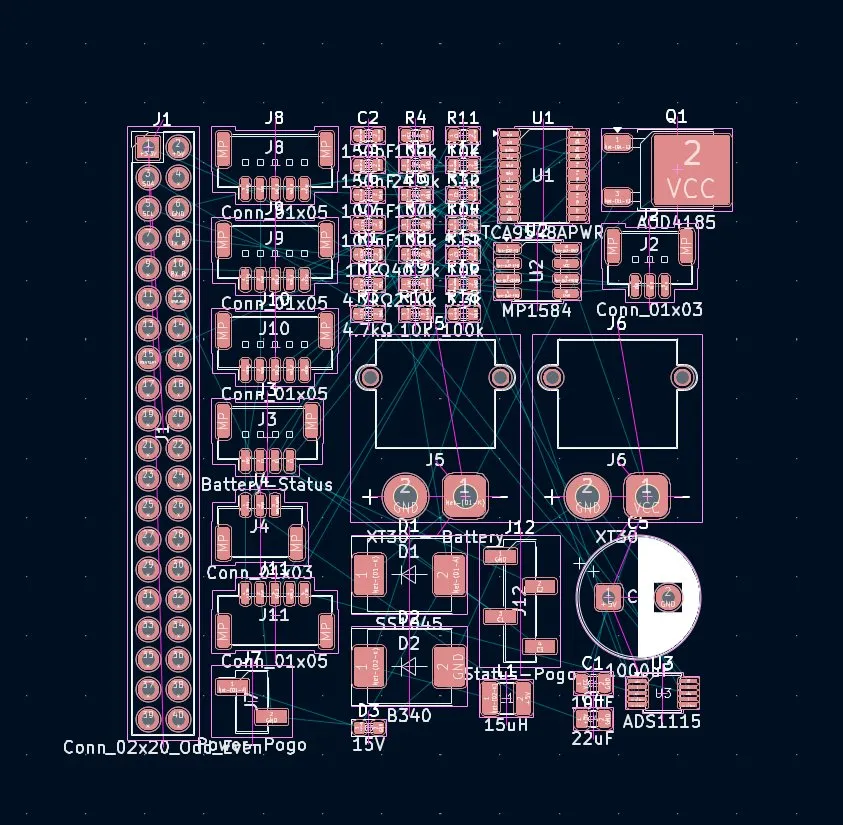
and after that I had to draw the size and form of the PCB. I did that by making an outline of 2mm from the walls and then cut out the piece I would need. but then I also had to draw the position of the FC but I wasn't sure where the front is.
and after drawing the PCB size, I also drew the position of the FC and the center of the mounting holes:
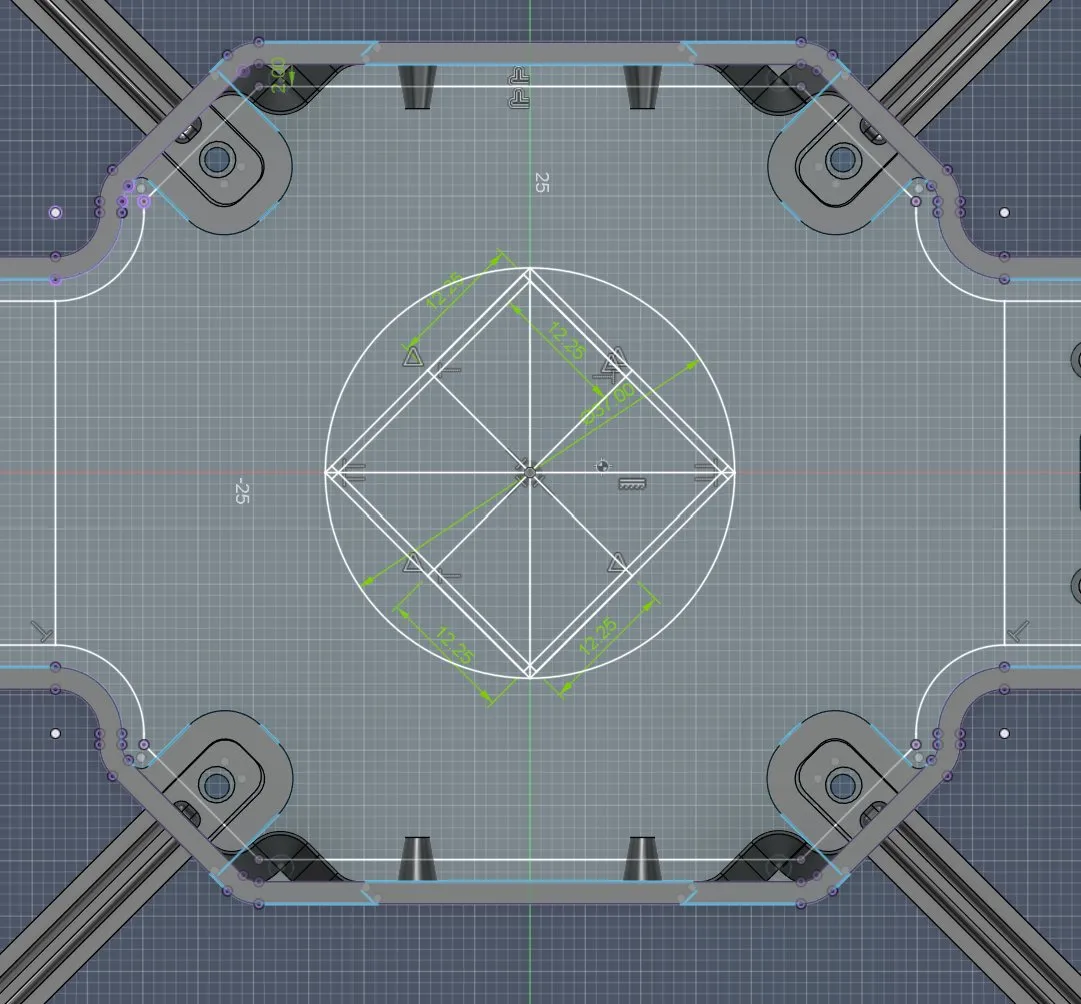
and I decided to make the holes for the screws so that they will hold the FC and the PCB, so that the screw can perfectly go through it, but then I saw that the length was wrong: 24.5, so I built the rectangle again with 0.5mm more on each side.
and after fixing that it looked like that:
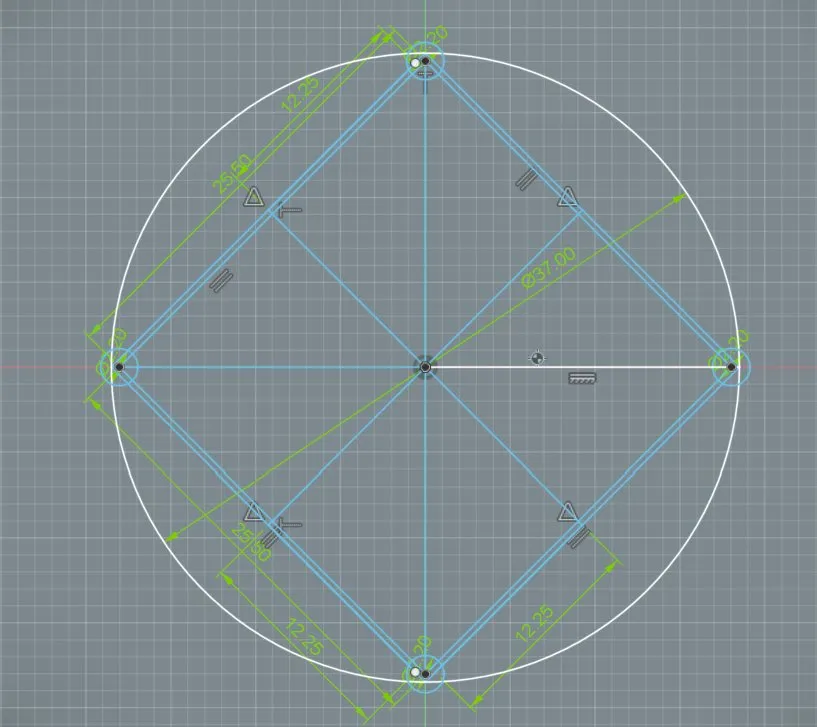
and after removing the unnecessary lines, only the holes for the PCB were left.
but I wasn't sure if the 4 holes would hold the PCB.
But I decided not to make more holes but to make support pads that help the PCB not vibrate.
then I firstly placed the connector in the correct place so that I can start with the routing soon and tidy it up a bit.
I placed the J11 and J8 for the sensors in the front, for the down- and front-looking sensor, and I also added the servomotor connector to the front because it's at the front.
Next I also moved the J9 to the right side for the right sensor and the J10 to the left side.
Then I also added the J2, which is for the connection between the Pi and FC, to the left side because around there are also the pins from the FC to connect.
Lastly I also positioned it, but when I wanted to connect the XT30 cable, because exactly there where I wanted to add it, the capacitor of the FC was overhanging and was blocking the whole place for the 3 battery connectors.
Option would be to add the capacitor on my PCB.
Option would be to solder it so that it's not overhanging and is facing straight up.
And I decided to add the capacitor to my PCB so that it will not vibrate and accidentally break, and I think that this is the best, cleanest, and nicest solution, soooo I jumped back to the schematics and added it, and after adding it to the circuit it looked like that:
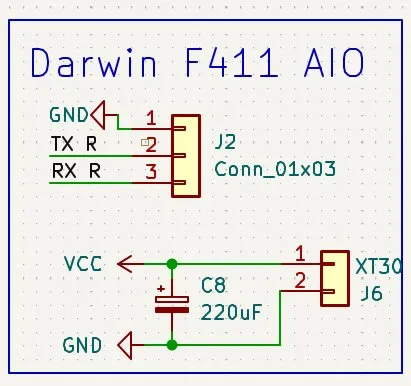
and then I also updated the PCB:
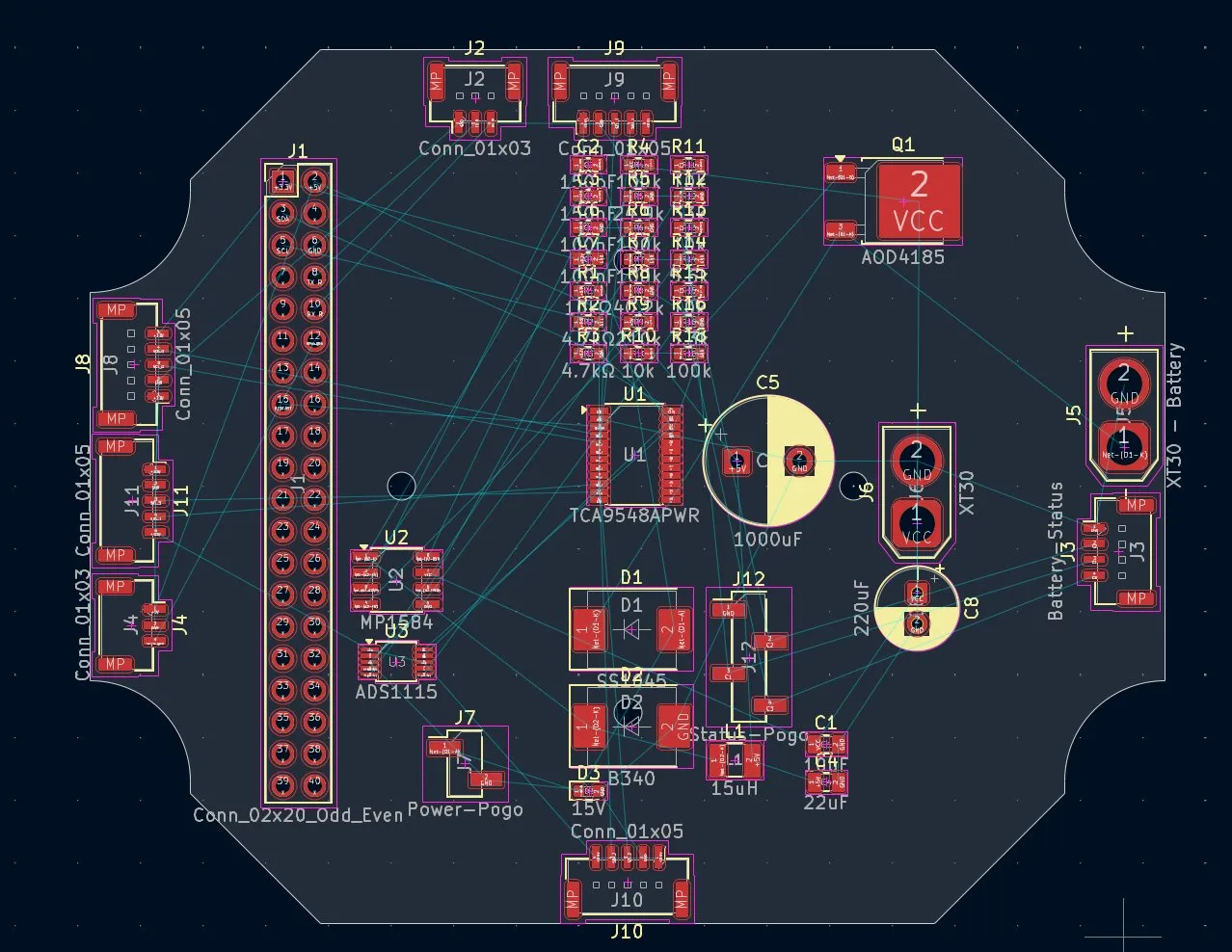
and after that I optimized the placement of the connectors so that they were perfect:
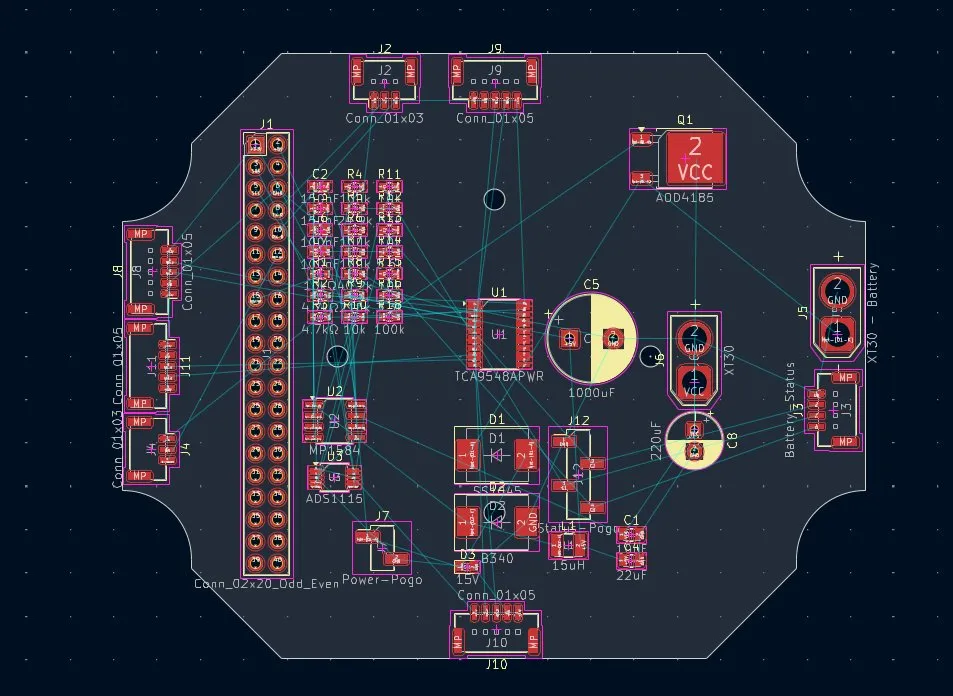
after that I started positioning the components, but for that I firstly had to pay attention to a lot of things while placing them.
but before I started I roughly brought all components to their places:
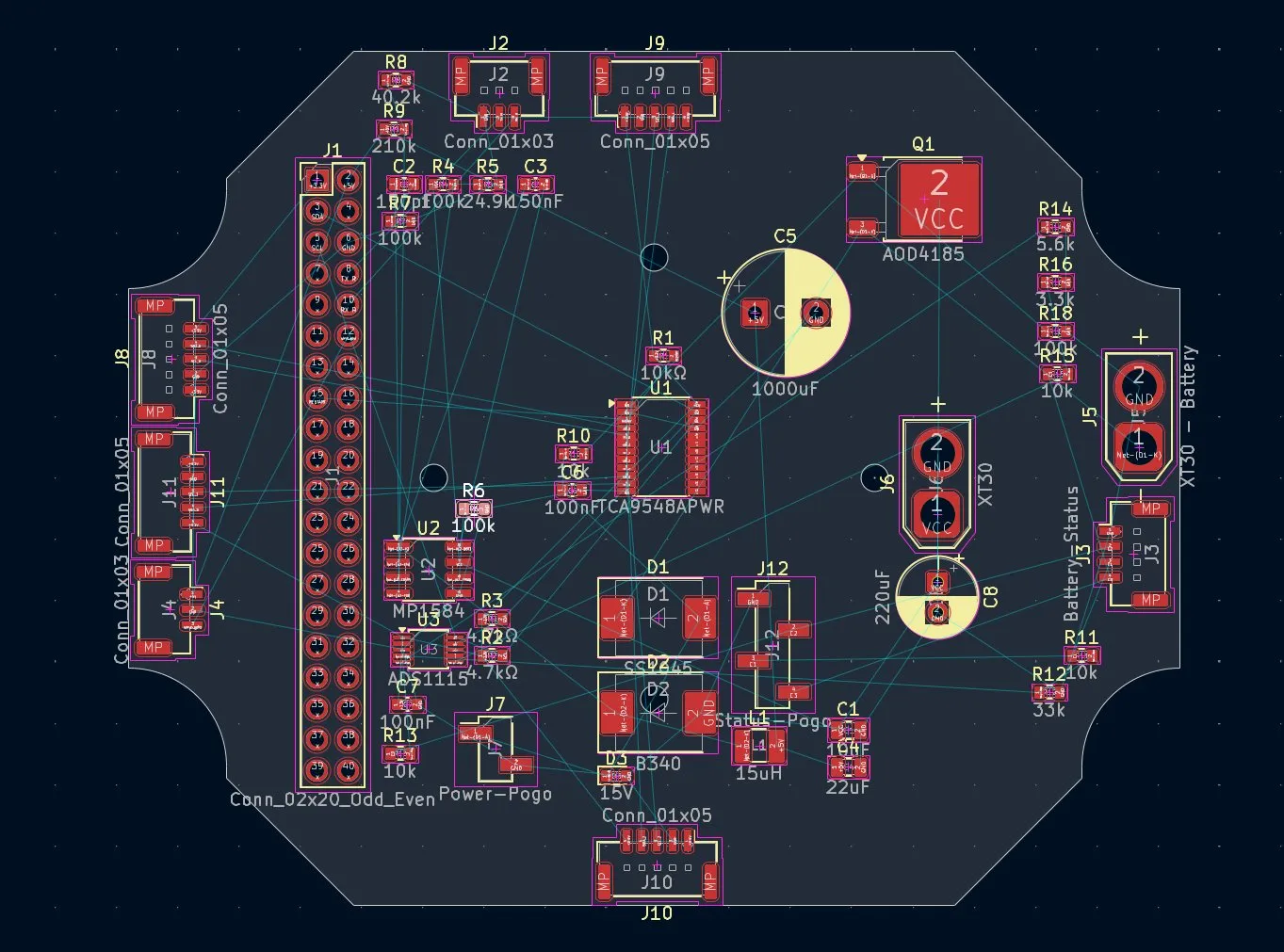
but while I was doing the Raspberry Pi power supply, the many texts made it impossible to read and connect them properly.
After Going to the settings and disable them It looked much cleaner
and after that my Raspberry Pi and servo motor power was finished:
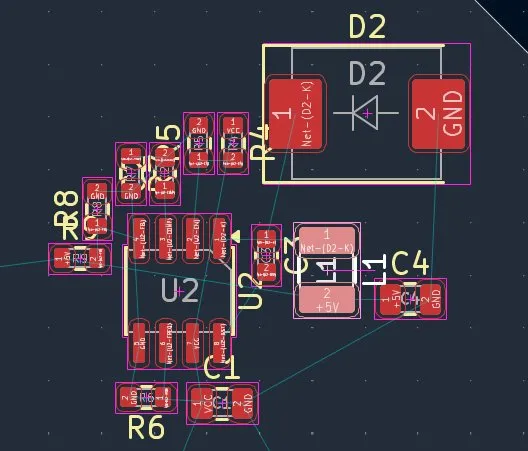
but then I read in the datasheet that the diode must be as close as possible to pin 1, so I switched the position with the L1:
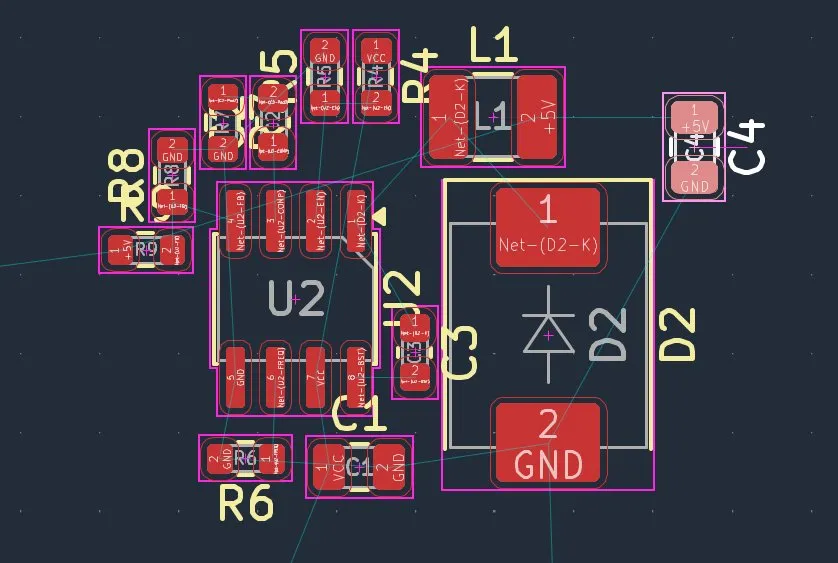
I also took some inspiration and tips from the datasheet for optimal positioning. For that I'll connect the R9 in the 3rd layer with an extra power wire because now it's very hard to get to it, and also for the R4 connection I'll use the 4th layer to connect it to VCC/VIN, and after checking in 3D it looked pretty good:
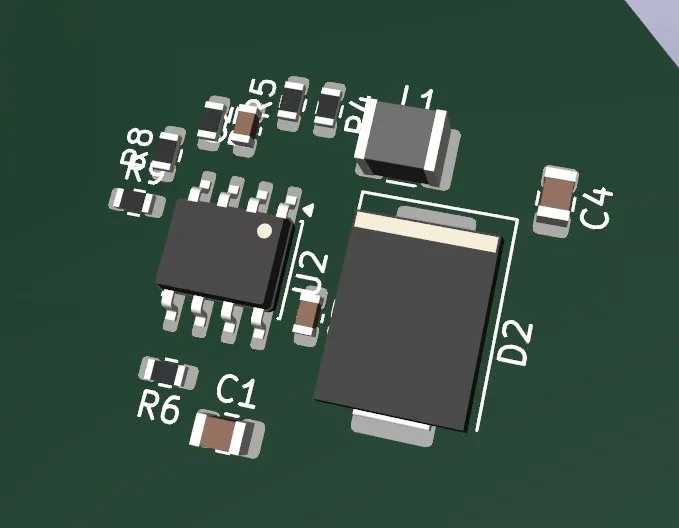
So I continued with the battery percent:
and then I noticed that I forgot once to stop the timer and then when I wanted to stop the timer again I actually started it, so I lost like 30min of work T-T (in time).
but with the U3 I had the problem that the C2, C1, and C3 were always crossing with GND, which would make it much harder to connect them to the other pins, but lastly I found a very nice solution:
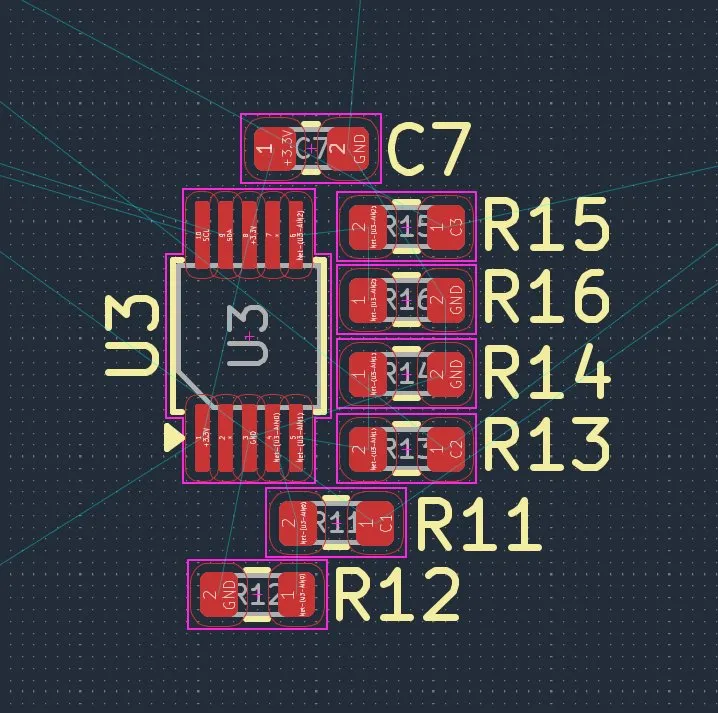
After that I continued with the LiPo battery and pogo pins:
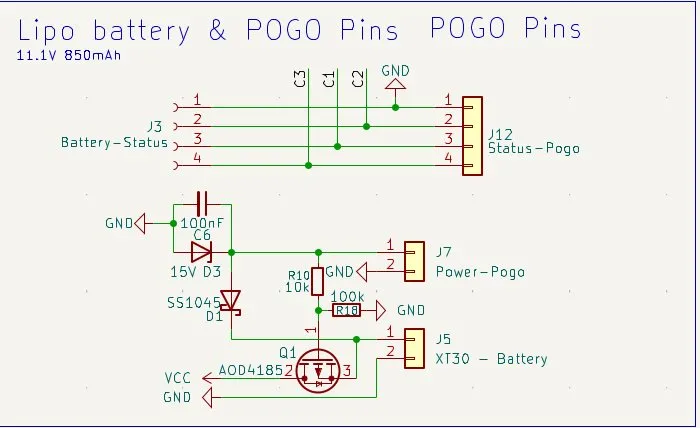
and actually this went pretty fast and looked like that:
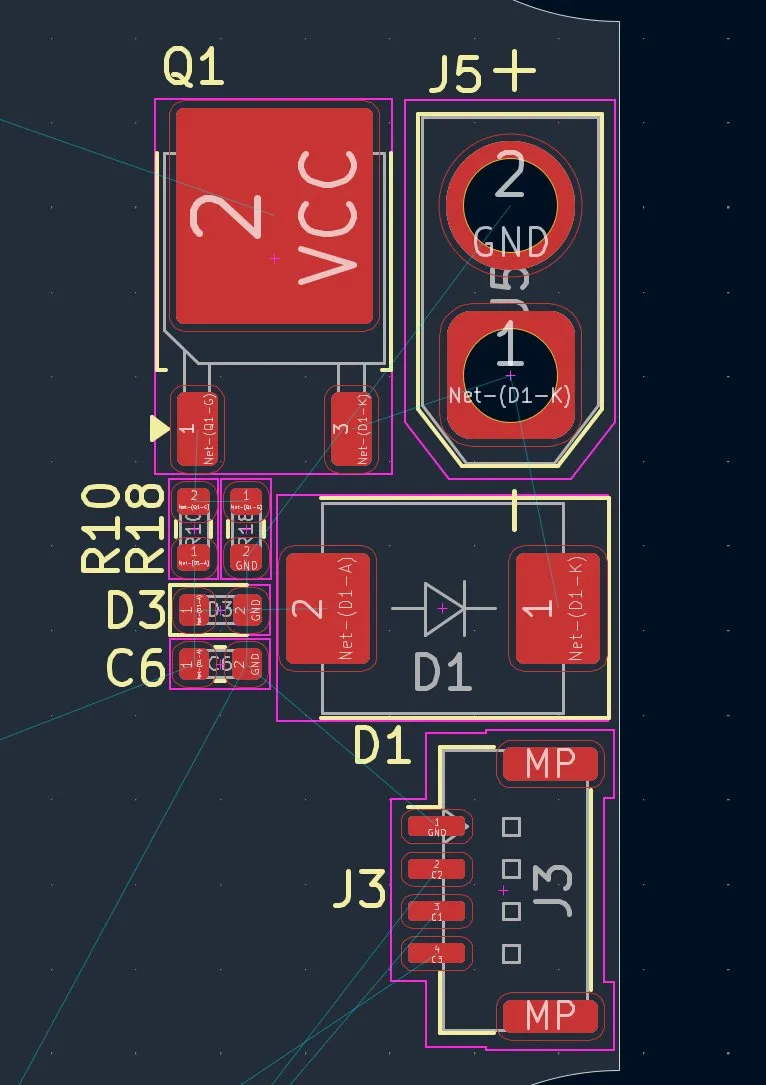
I also made the texts for the parts that I already placed nicer so that it looked like that:
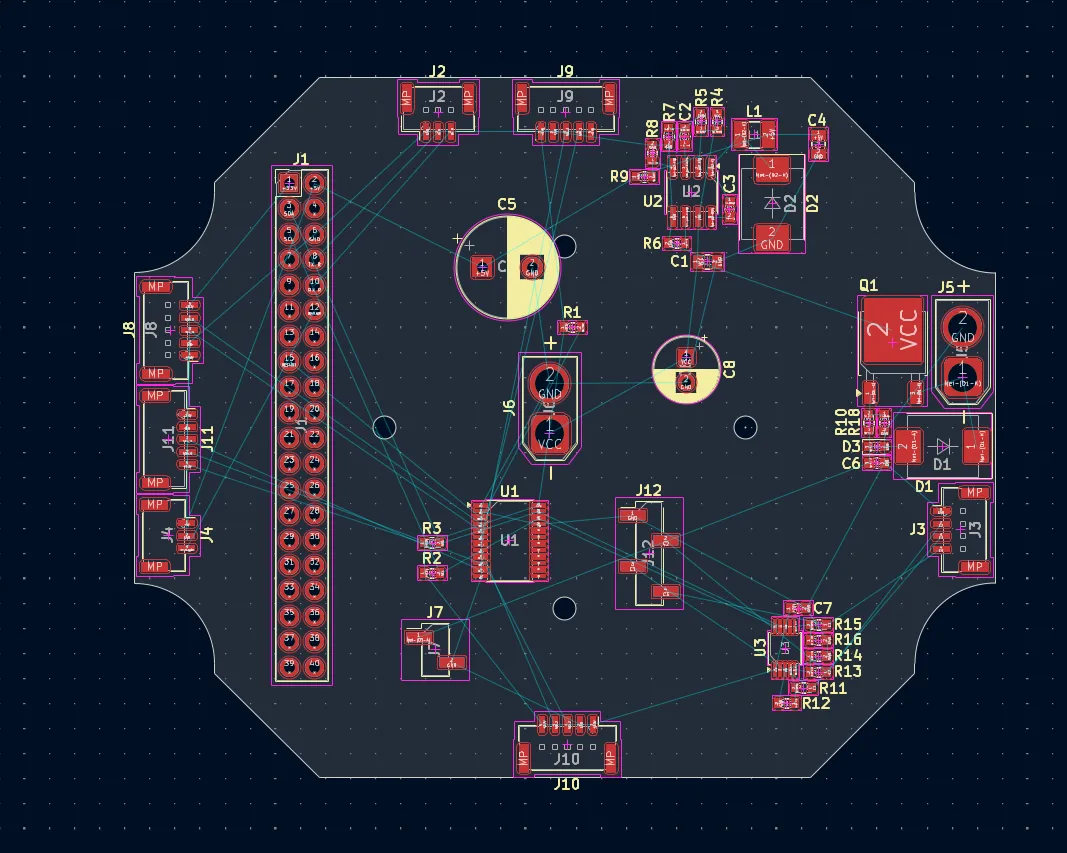
and lastly I centered the U1, positioned the resistors and capacitor, and I was finished with positioning the components.
Here is the 3D model and the PCB parts:
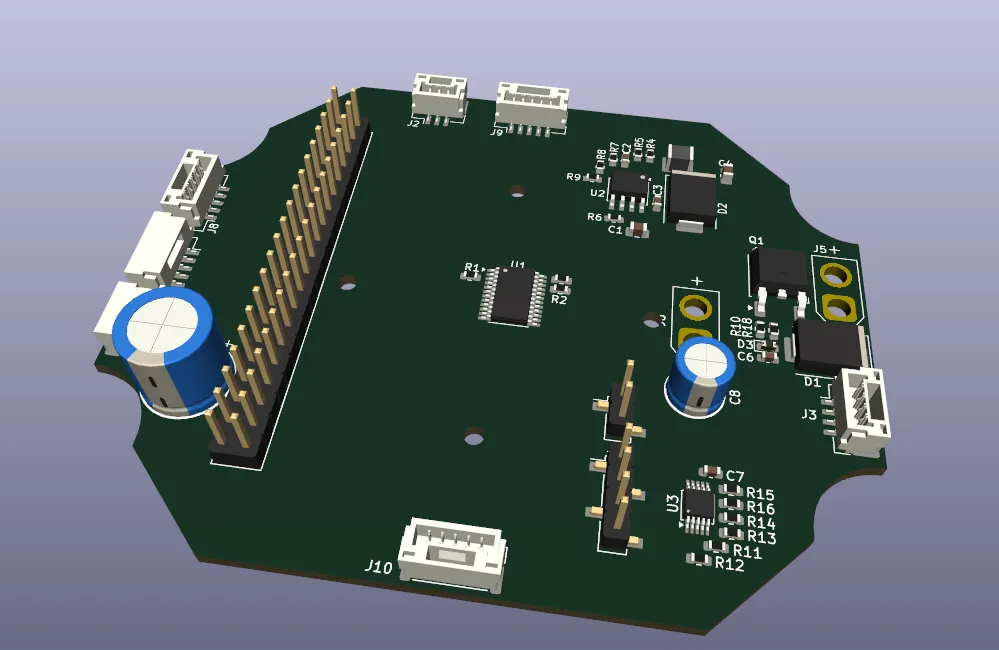
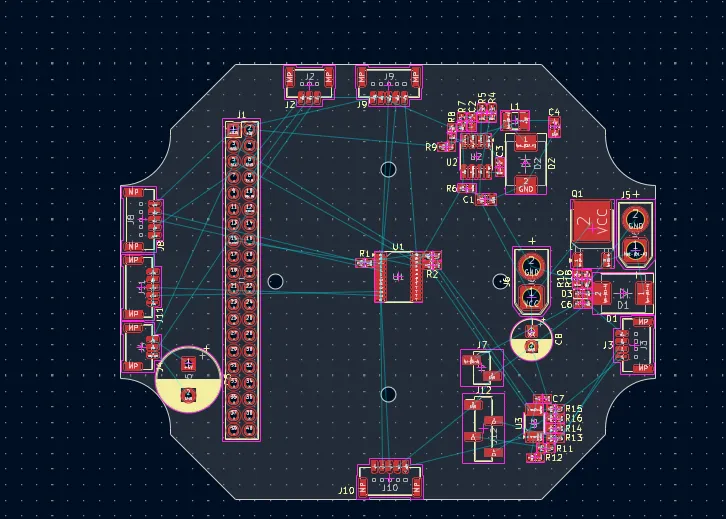
Pretty happy with the progress, fixed the last schematic bugs, learned how to import the schematics into the PCB editor and place the components, and did that. Next will be routing and hopefully finishing the PCB!!
Session recordings
Timelapse recordings of this session.